
What each screen does
Nsuve has the same name and the same purchase on every screen. The Mac version comes first. iPhone and iPad share one app, which iPhone Duo uses too, and Apple TV and Vision Pro versions are on the way.
| Screen | Status and requirements | What it does |
|---|---|---|
| Mac | macOS 14 or later, Apple silicon only | Home base: the Inbox, organizing and duplicates, person recognition, AI agents, Nsuve Link, and backup and moving all live here. Cloud drives such as Baidu Netdisk, 123 Cloud, OneDrive, Dropbox and Google Drive connect directly only on the Mac. |
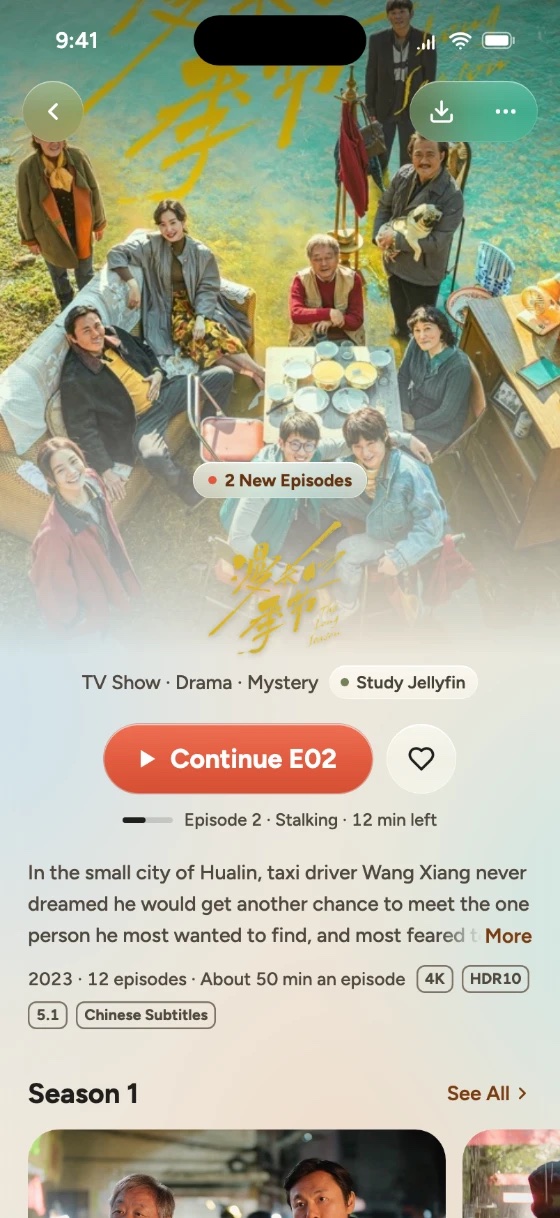
| iPhone | Coming soon · iOS 17 or later | Plays films straight from your NAS and media servers; Send to Mac; Save to Nsuve from other apps' share sheets; Picture in Picture. |
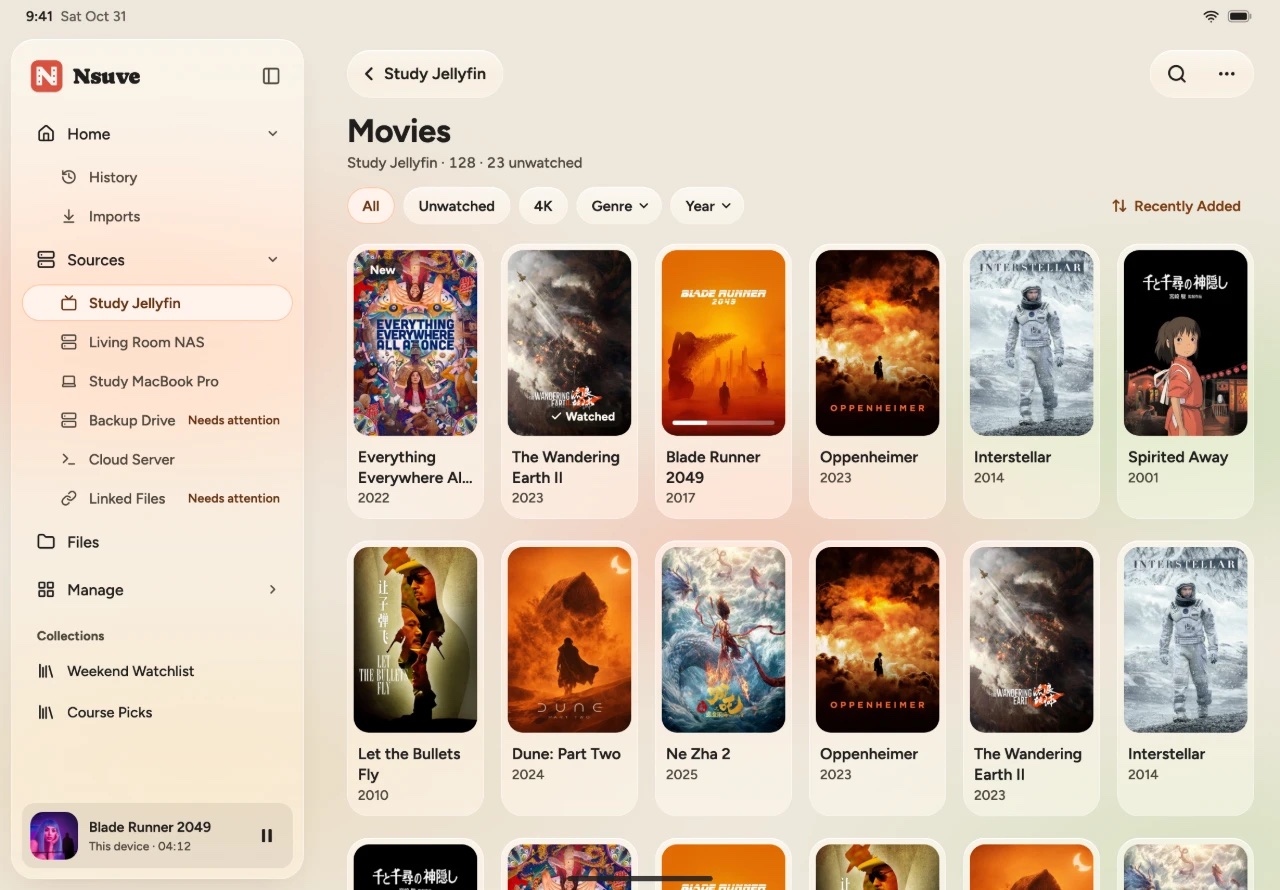
| iPad | Coming soon · same app as iPhone | Two columns, with the right one tucked away until you need it. |
| iPhone Duo | Coming soon · uses the iPhone app | Folded, it looks like a phone; unfolded, it opens into two columns. The outer screen can play films while folded. |
| Apple TV | Coming soon | Already included in Lifetime Pro for all platforms. No Private Space. |
| Vision Pro | Coming soon | Already included in Lifetime Pro for all platforms. No Private Space. |
On iPhone and iPad
The tab bar has Home, Sources, Files and Manage, plus a + button. On iPad they sit in the sidebar on the left.
On a phone you can connect WebDAV, SMB, SFTP, Emby, Jellyfin and Plex, as well as files on the device and locations in the Files app. A Mac you've paired shows up under Sources too. Cloud drives and DLNA are Mac-only.
Sync between your iPhone and iPad with iCloud
In a source's settings, under Sync to Other Devices, turn on Sync This Source with iCloud. That source's recognition results, the matches you fixed by hand, the versions you picked, that NAS's settings and your watch progress then stay in step across the iPhones and iPads signed in to the same Apple Account. It all lives in your own iCloud, readable only by your devices. Passwords, Private Space and images are never synced.
Your Mac's library doesn't sync through iCloud. To watch your Mac's films on a phone, use Nsuve Link.
Nsuve Link: your Mac's films on your phone
Nsuve Link makes your Mac the center of your home library. A paired iPhone or iPad can browse the folders and posters the Mac shares and play them directly. By default it only accepts connections from your local network, and nothing goes through a cloud relay.
- On the Mac, click Nsuve Link in the workbench sidebar and turn on "Let other devices play videos from this Mac". It turns on by itself on your home network and pauses on other networks.
- Under Shared Folders, check the folders other devices may see. Click Add Device…, then Scan with iPhone. A QR code appears on the Mac.
- In Nsuve on your iPhone or iPad, go to Sources and choose Connect a Mac (the first time you open the app, Home also offers Connect Your Mac). Tap Scan and point at the QR code on the Mac's screen. If scanning doesn't work, try Look Nearby.
- The Mac shows that your phone wants to connect, along with a check code. If it matches the number on the phone, click Allow. Before you do, you can choose the folders it can see and whether to allow Save to Device, Convert on the Mac and Send to Inbox.
Once paired, the Mac appears under Sources on the phone; tap it to browse and play. A few things to know:
- Only videos in your library folders are shared. Videos in Sources (external drives, local folders, NAS, cloud drives) won't appear on other devices, and Private Space and the Inbox are never shared.
- When the Mac sleeps or Nsuve quits, other devices can't see anything. While it's playing to a device, the Mac won't go to sleep on its own.
- When you watch your Mac's films on a phone, where you stop is remembered only on that phone.
- To cut a device off, click Revoke… next to it in Nsuve Link on the Mac. Copies it already saved can't be taken back.
Send videos from your phone to the Mac
On iPhone, a file's ⋯ menu has Send to Mac. The video lands in the Mac's Inbox; once you file it into a shared folder on the Mac, the rest of the household can watch it too. Only videos can be sent, and subtitles don't go along for now. Keep Nsuve open while it sends; if the transfer breaks off, it picks up where it stopped. The Mac has to allow Send to Inbox for that device first.
Buy Pro once, use it everywhere
Pro belongs to your Apple Account, not to one device.
- Pro yearly: free for the first 7 days, and it works on all your devices.
- Lifetime Pro: for Mac, for iPhone + iPad, or for all platforms. All platforms covers Mac, iPhone and iPad, plus the Apple TV and Vision Pro versions when they arrive.
- If you own one single-platform lifetime, you can upgrade to all platforms. If you own both the Mac and the iPhone + iPad lifetimes, you already have all platforms.
- With only the iPhone + iPad lifetime, Nsuve on the Mac stays on Free.
- Family Sharing isn't available at launch.
Free includes everything except AI tool connections, with 15 plays a month. A play counts once a video has actually played for 10 seconds; pausing and scrubbing don't count. The count resets on the 1st of each month, and each device keeps its own. Pro has no limit.
See pricing on the home page. The App Store shows the final price.
Read next
- Getting startedConnect your NAS, servers and drivesConnect a NAS (SMB, WebDAV, SFTP; Synology, QNAP, fnOS), Emby, Jellyfin, Plex and cloud drives to Nsuve and get one library. What each device can connect, and what happens when a source is offline.
- WatchingPick up where you left offResume where you left off in Nsuve, set autoplay and when a video counts as watched, pick subtitles and audio, adjust the picture, see which formats play and which use hardware decoding, and open Playback Diagnostics with ⌥⌘I.